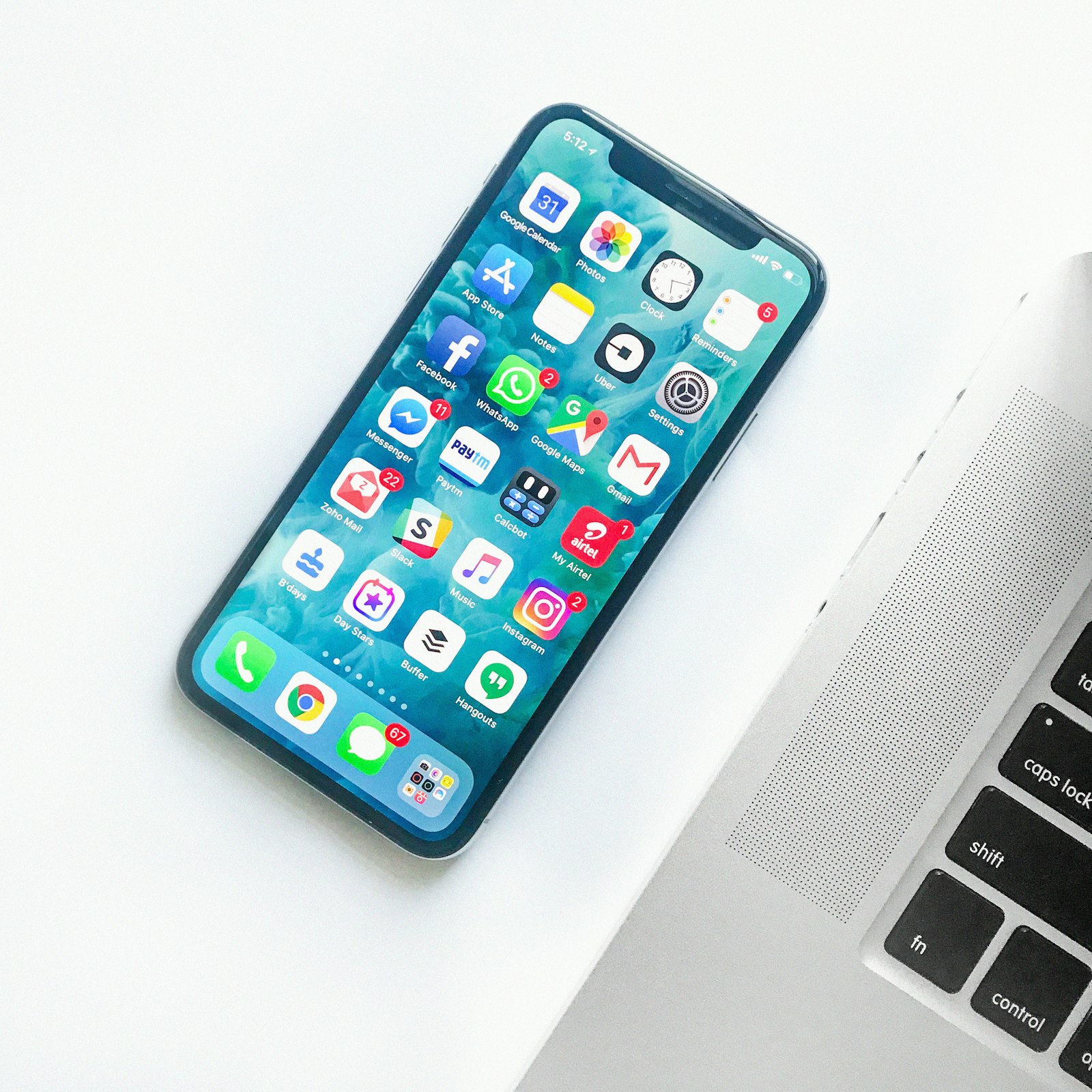
That “storage almost full” warning always seems to arrive just as you are trying to take a photo or install an update. The fix is rarely to delete everything at random; a few targeted clear-outs usually free up plenty of space.
Quick answer: When your phone storage is full, start by checking the storage screen in Settings to see what is using the most space. Then delete or offload apps you do not use, back up and remove large videos, clear message attachments, delete offline downloads you have finished with and empty “recently deleted” folders.
Why does my phone storage fill up so fast?
Phones fill up quietly. Photos and especially videos take a lot of room, and modern cameras save higher-quality files than older ones. Messaging apps save every photo, video and voice note you are sent. Streaming apps keep downloaded episodes and playlists. And system updates need spare space to install.
Two terms come up a lot:
- Cache: temporary files an app stores so it loads faster. It can usually be cleared safely and rebuilt later.
- App data: your settings, logins and saved content inside an app. Clearing this is more drastic.
Step 1: See what is taking up space
Before deleting anything, find out where the space is going.
- iPhone: in Settings, go to General and look for iPhone Storage. You will see a coloured bar and a list of apps sorted by size.
- Android: in Settings, look for Storage (sometimes under Battery and device care or a similar heading, depending on the manufacturer). Google’s Files app also has a cleaning section with suggestions.
Look at the top five or so items. That is usually where you will win back the most space.
What to delete first
Work through this list roughly in order. The early items tend to free the most space with the least risk.
1. Apps you no longer use
Old games, one-off travel apps and trial apps add up. Delete anything you have not opened in months; you can usually reinstall it later.
On iPhone, you can also offload an app. This removes the app but keeps its documents and data, so if you reinstall it, you pick up where you left off. Some Android phones offer a similar feature that archives unused apps automatically; look for it in your app or storage settings.
2. Large videos
Videos are often the single biggest storage hog. A few minutes of high-resolution footage can take more space than hundreds of photos.
- Open your photo app and look for a way to view videos only, or sort by size if available.
- Back up any you want to keep (see Step 2 below).
- Delete the ones you do not need, such as accidental recordings or duplicates.
3. Message attachments
Messaging apps such as WhatsApp, Messages and others store every photo, video, GIF and voice note. Many have their own storage manager that shows the largest files and chats.
- In WhatsApp, look in Settings for Storage and data, then Manage storage.
- On iPhone, the Messages entry in iPhone Storage lets you review large attachments.
- Consider setting older messages to delete automatically after a year, if your app offers it and you are comfortable with that.
4. Offline downloads
Downloaded films, TV episodes, podcasts and playlists are easy to forget. Open each streaming app and remove anything you have already watched or listened to. Many apps have a setting to delete downloads automatically once you finish them.
5. “Recently deleted” folders
When you delete photos, many phones keep them in a recently deleted album for around 30 days in case you change your mind. Until that folder is emptied, the space is not freed. Check your photo app and files app for these folders once you are sure you do not need the contents.
6. Browser and app caches
On Android, you can clear an individual app’s cache from its app info page in Settings, under Storage. On iPhone, there is no general cache button, but you can clear Safari’s history and website data in Settings, and offloading or reinstalling an app clears its cache.
7. Screenshots and duplicates
Screenshots pile up fast. Many photo apps group them in their own album, making them easy to review. Some phones also detect duplicate photos and offer to merge them.
Quick-win checklist
| What to check | Typical space saved | Risk of losing something important |
|---|---|---|
| Unused apps | Medium to high | Low (can reinstall) |
| Large videos | High | Medium (back up first) |
| Message attachments | Medium to high | Medium (review before deleting) |
| Streaming downloads | Medium to high | Very low |
| Recently deleted folders | Varies | Low (already deleted once) |
| App caches | Low to medium | Very low |
| Screenshots | Low to medium | Low |
Step 2: Back up before you delete
Photos and videos are irreplaceable, so make sure they are safe before you remove them from your phone.
- Cloud backup: iCloud Photos on iPhone, Google Photos on Android and iPhone, or another cloud service. Check your settings to understand whether deleting from the phone also deletes from the cloud.
- Computer backup: copy photos to your laptop or an external drive with a cable.
- Optimised storage: both iCloud Photos and some other services can keep smaller versions on your phone and full versions in the cloud.
Apple’s support site and Google’s help centre both have up-to-date guidance on backing up and managing photo storage.
What not to delete
Some things look large but are best left alone:
- System or iOS files: these are part of the operating system. You cannot safely remove them by hand.
- Your authenticator app: if you use it for two-factor authentication, deleting it without moving your codes could lock you out of accounts.
- Your password manager: keep it installed and synced. If you have not set one up yet, our password manager beginner’s guide explains how.
- Banking apps: you can reinstall them, but you may need to go through security checks again.
How to stop your storage filling up again
A few settings and habits keep things under control:
- Turn on automatic removal of watched downloads in streaming apps.
- Stop messaging apps saving every received photo to your camera roll.
- Turn on any “offload unused apps” or auto-archive option.
- Check your storage screen once a month.
- Clear out screenshots as part of a regular tidy-up.
If you would like a bigger reset across your phone, laptop and inboxes, try our digital declutter weekend plan. Fewer apps can also mean fewer late-night notifications, which ties in nicely with our screen habits for better sleep.
When to consider more storage
If you have cleared everything sensible and still run out regularly, you may simply need more space. Options include a paid cloud storage plan, a microSD card on Android phones that support one, or choosing a higher storage option when you next upgrade.
Before paying for anything, restart your phone and install any pending updates. Temporary files sometimes build up and are cleared after a restart, and a full phone can struggle to install updates at all, so freeing a little space first and then updating is a sensible order. If the storage figures still look wrong after that, a backup followed by a reset is a last resort, but most people never need to go that far.
The short version
- Check the storage screen in Settings to find the biggest space users.
- Delete or offload apps you do not use.
- Back up, then remove large videos.
- Clear message attachments and streaming downloads.
- Empty “recently deleted” folders once you are sure.
- Keep your authenticator, password manager and system files.
Here at ConnectionCafe.com you will find more plain-English tech guides for your phone, laptop and home tech.